How to Adjust Print Margins for Perfect Printing
Understanding Print Margins
When it comes to printing documents, one of the most important factors to consider is the print margin. Print margins refer to the blank space between the edge of the paper and the text or images on the page. Adjusting print margins is crucial to ensure that your documents print correctly and look professional. In this article, we will explore the importance of print margins and provide a step-by-step guide on how to adjust them.
Adjusting print margins is not just about aesthetics; it also plays a significant role in the functionality of your documents. For instance, if the margins are too small, the text may get cut off during printing, while large margins can result in wasted paper. Moreover, proper print margins can improve the readability of your documents, making them easier to scan and understand. Whether you are printing reports, letters, or flyers, adjusting print margins is essential to achieve the desired output.
Adjusting Print Margins in Popular Software
To adjust print margins, you need to understand the different types of margins and how they affect your documents. The top margin refers to the space between the top edge of the paper and the first line of text, while the bottom margin is the space between the last line of text and the bottom edge of the paper. The left and right margins refer to the space between the left and right edges of the paper and the text. By adjusting these margins, you can customize the layout of your documents and ensure they print perfectly.
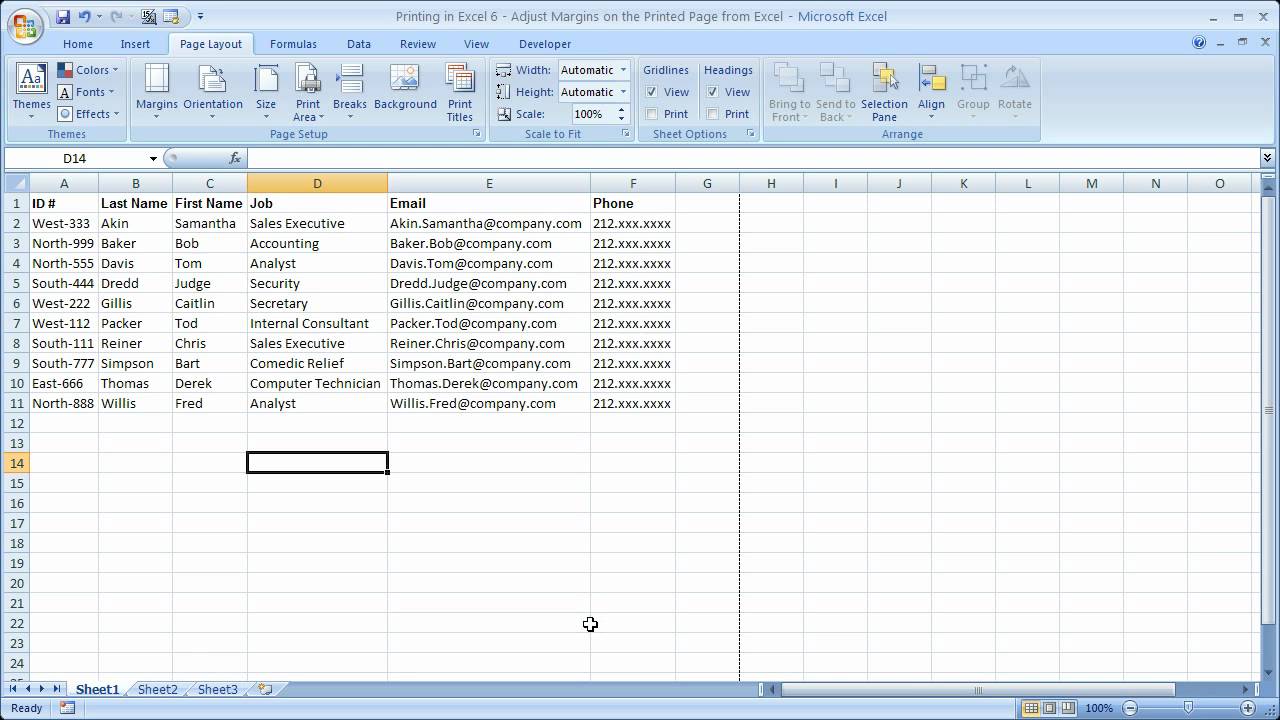
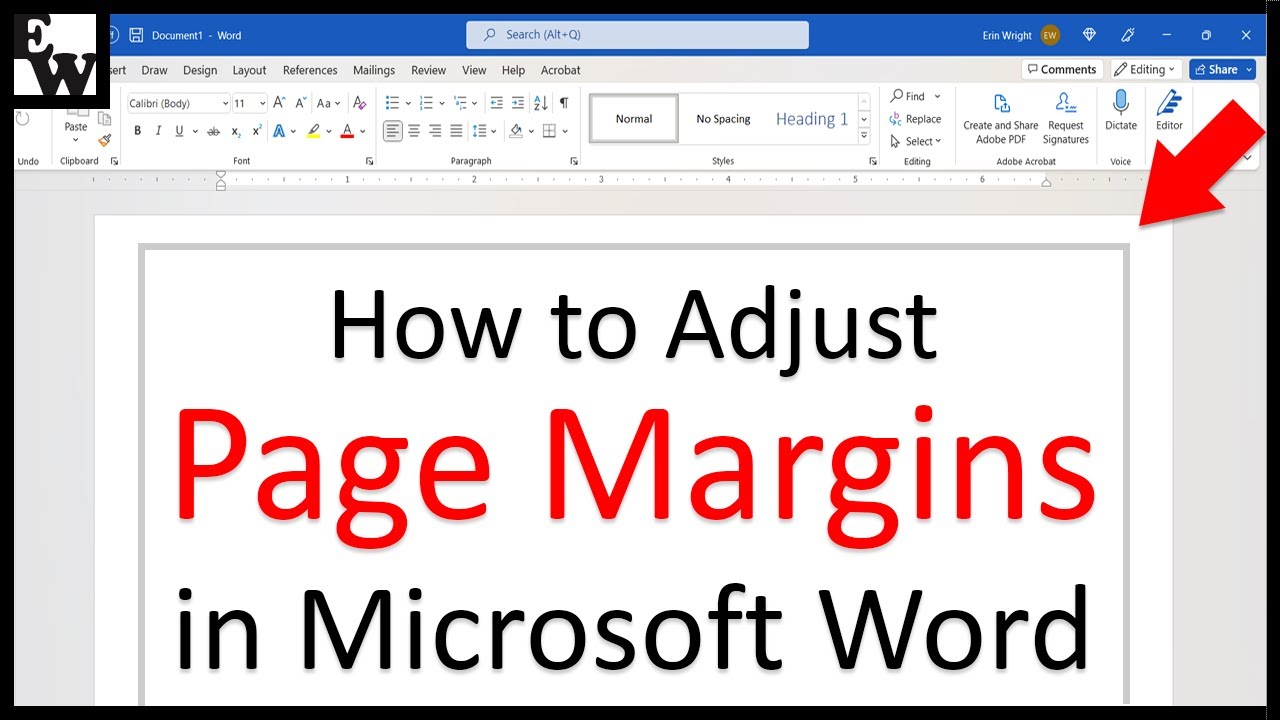
Fortunately, adjusting print margins is a straightforward process in most popular software applications, including Microsoft Word and Google Docs. To adjust print margins in these applications, simply go to the 'Page Layout' or 'File' menu, select 'Page Setup' or 'Print Setup,' and then adjust the margin settings as desired. You can also use the ruler tool to adjust the margins manually. By following these simple steps, you can adjust print margins to achieve professional-looking documents that print perfectly every time.