How to Print PowerPoint Notes: A Step-by-Step Guide
Printing Notes Pages
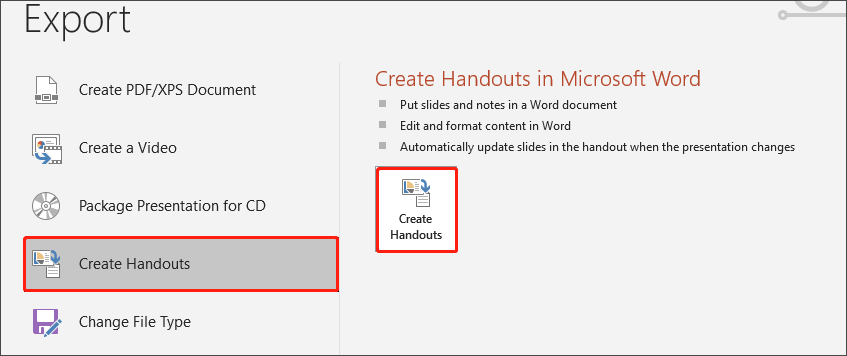
Printing PowerPoint notes is a great way to provide your audience with a handy reference guide to follow along with your presentation. Whether you're a student, teacher, or business professional, printing notes can be a valuable resource. In this article, we'll walk you through the simple steps to print your PowerPoint notes.
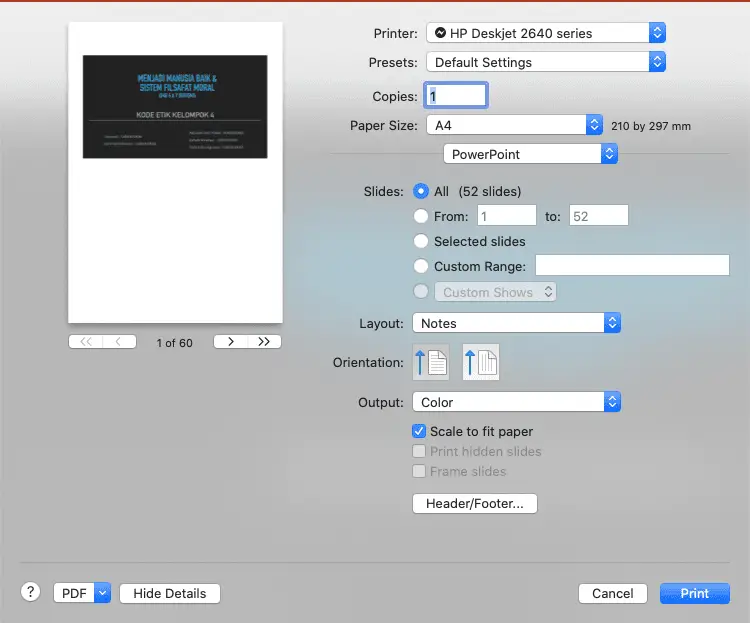
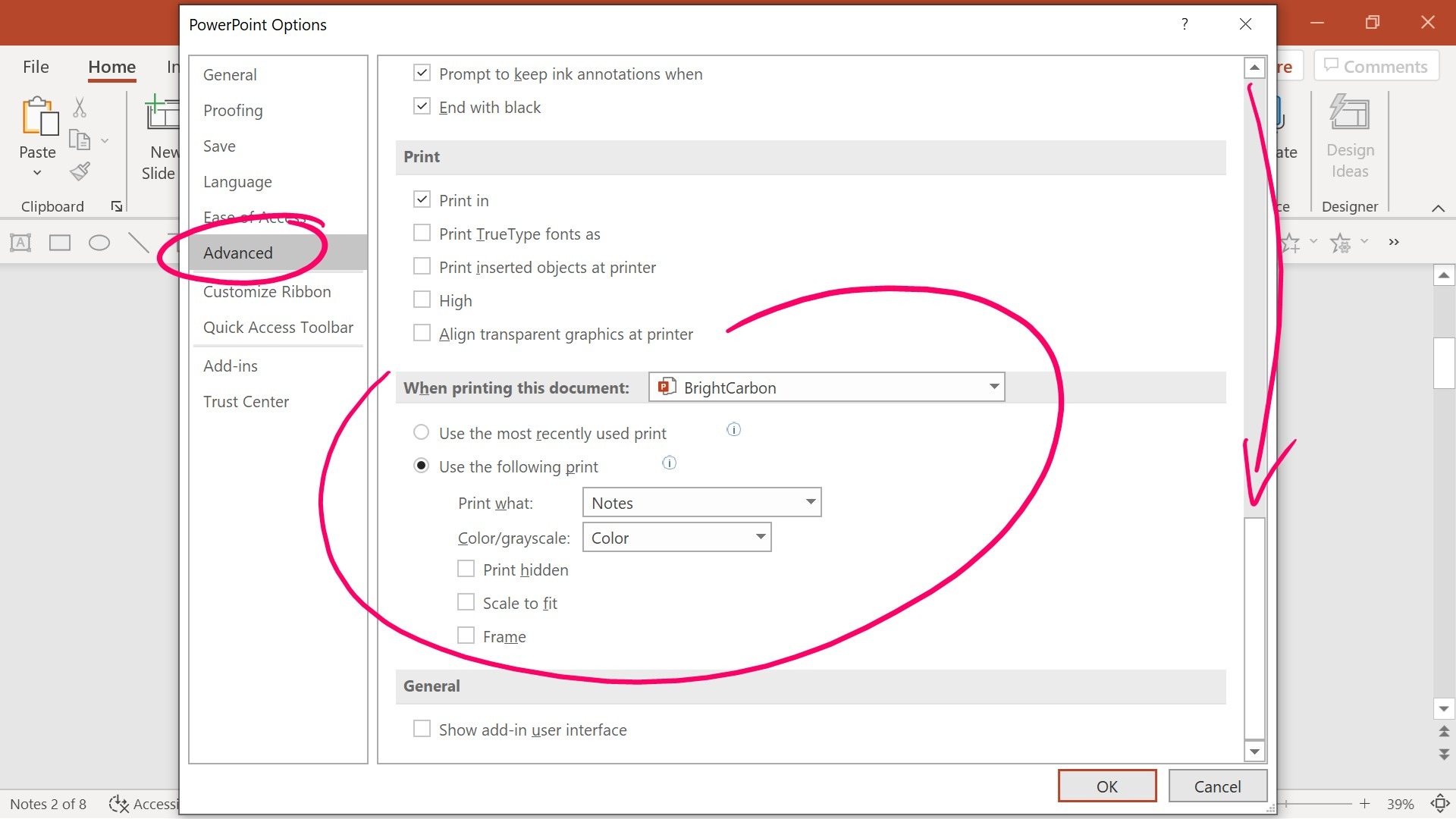
To print your PowerPoint notes, start by opening your presentation in PowerPoint. Then, click on the 'File' menu and select 'Print'. This will open the print dialog box, where you can choose your print settings. You can select the number of slides per page, the layout, and the type of notes you want to print.
Customizing Your Print Settings
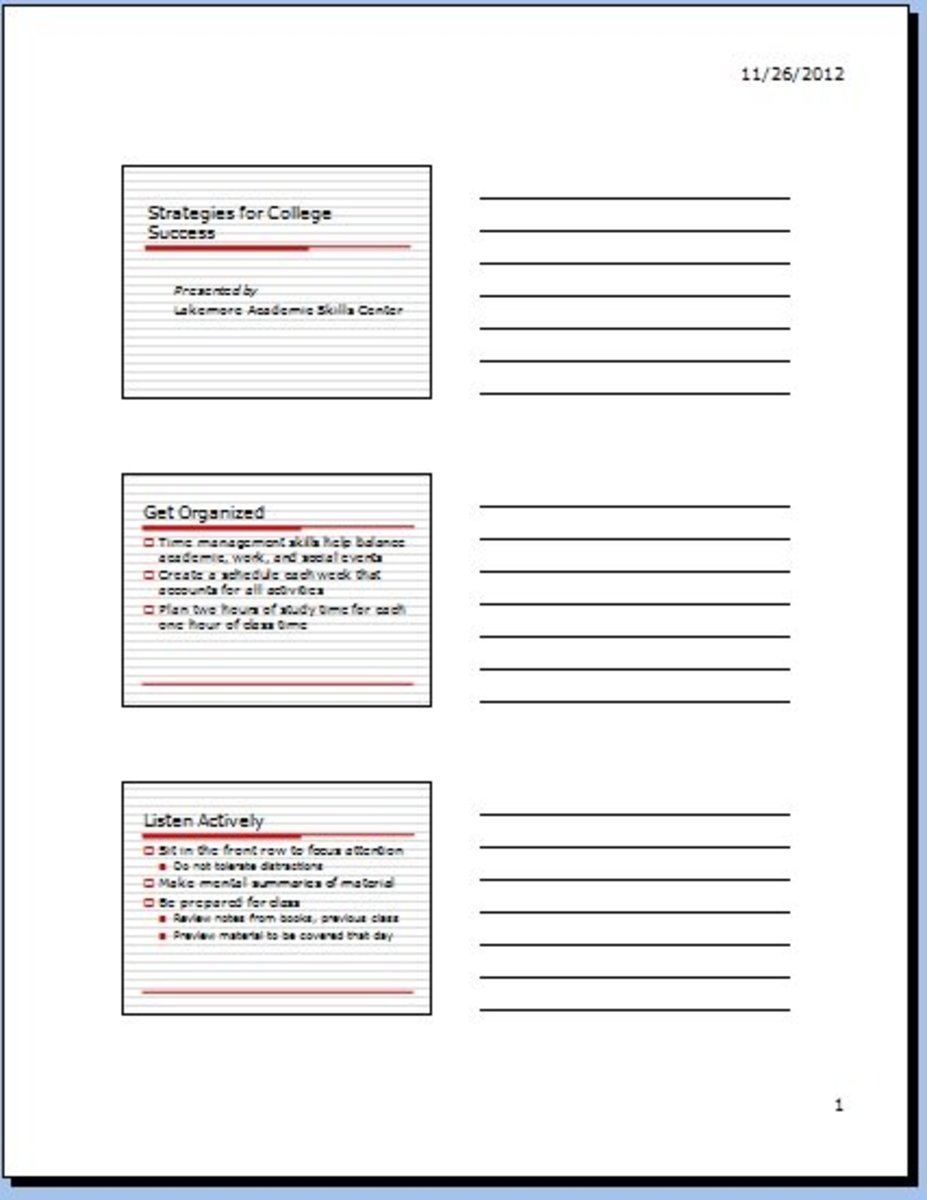
When printing notes pages, you can choose to print one slide per page, with the notes accompanying each slide. This is a great way to provide a detailed summary of your presentation. You can also choose to print multiple slides per page, with the notes printed below each slide. This is a good option if you want to save paper or provide a concise summary of your presentation.
PowerPoint also allows you to customize your print settings to suit your needs. You can choose the font, size, and color of your notes, as well as the layout and margins. You can also add headers and footers to your notes pages, which can include information such as the presentation title, date, and page numbers. By customizing your print settings, you can create professional-looking notes that will enhance your presentation and provide a valuable resource for your audience.