How to Share an Excel Sheet in Google Sheets
Converting Excel to Google Sheets
Are you tired of sending Excel files back and forth via email and struggling to keep track of changes? Look no further! Google Sheets offers a convenient and collaborative way to share and work on spreadsheets with others. In this article, we'll walk you through the simple steps of sharing an Excel sheet in Google Sheets.
To get started, you'll need to convert your Excel file to a Google Sheets file. This can be done by uploading your Excel file to Google Drive and then opening it in Google Sheets. Once you've done this, you'll be able to take advantage of Google Sheets' collaborative features, including real-time editing and commenting.
Sharing and Collaborating on Google Sheets
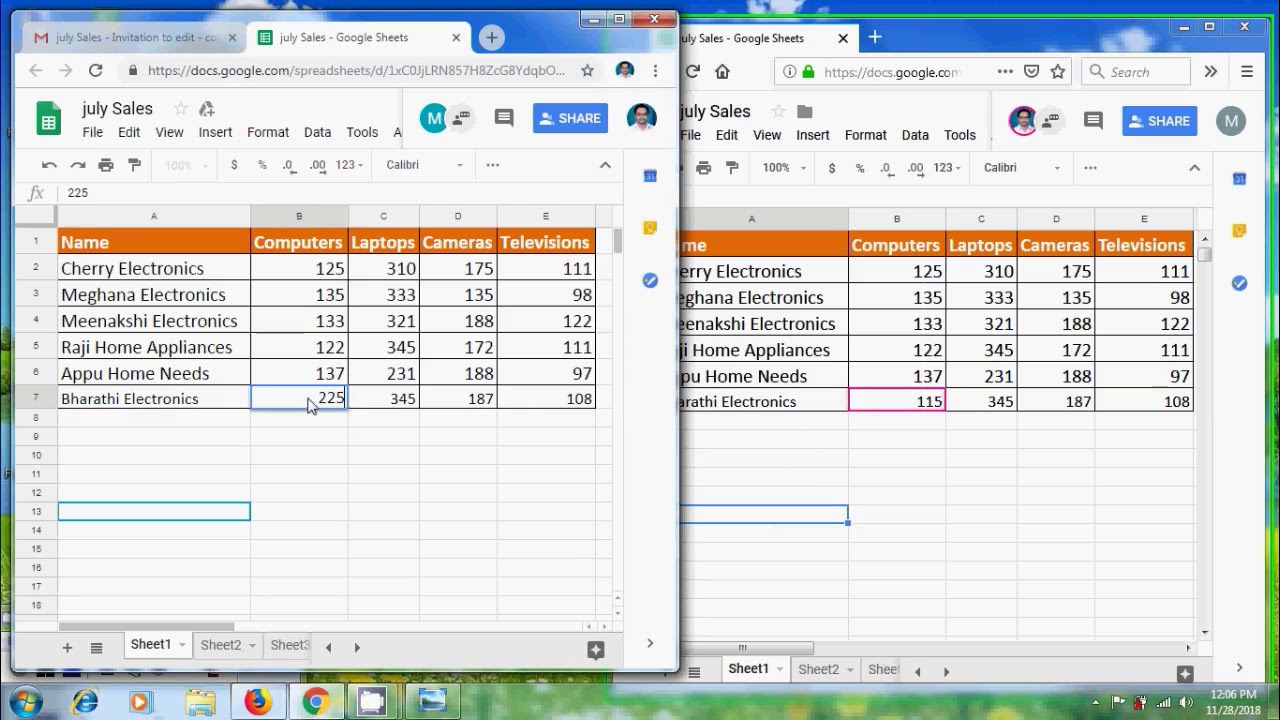
Once you've converted your Excel file to a Google Sheets file, you can start sharing it with others. To do this, click on the 'Share' button in the top right corner of the screen and enter the email addresses of the people you want to share the sheet with. You can also choose what level of permission you want to give each person, such as 'Editor' or 'Viewer'.
With your Google Sheets file shared, you can now collaborate with others in real-time. You can see who is editing the sheet and what changes they are making, and you can even communicate with each other through the built-in chat feature. Whether you're working on a project with colleagues or simply need to share a budget with family members, Google Sheets makes it easy to share and collaborate on spreadsheets.