How To View Multiple Google Calendars
Step-by-Step Guide to Viewing Multiple Calendars
Google Calendar is a powerful tool for managing your schedule and staying organized. However, if you have multiple calendars, it can be difficult to keep track of everything. Fortunately, Google Calendar allows you to view multiple calendars at once, making it easier to manage your schedule and stay on top of your appointments and events.
To view multiple Google Calendars, you need to first make sure that all the calendars you want to view are shared with you and that you have the necessary permissions to view them. Once you have access to the calendars, you can add them to your Google Calendar account and view them all in one place.
Tips for Managing Multiple Google Calendars
To add multiple calendars to your Google Calendar account, follow these steps: go to your Google Calendar account, click on the '+' button next to 'Other calendars', select 'Create new calendar' or 'Subscribe to calendar', and then add the calendar you want to view. You can also use the 'Settings' menu to add new calendars and manage your existing ones. By following these steps, you can easily view multiple Google Calendars at once and stay organized.
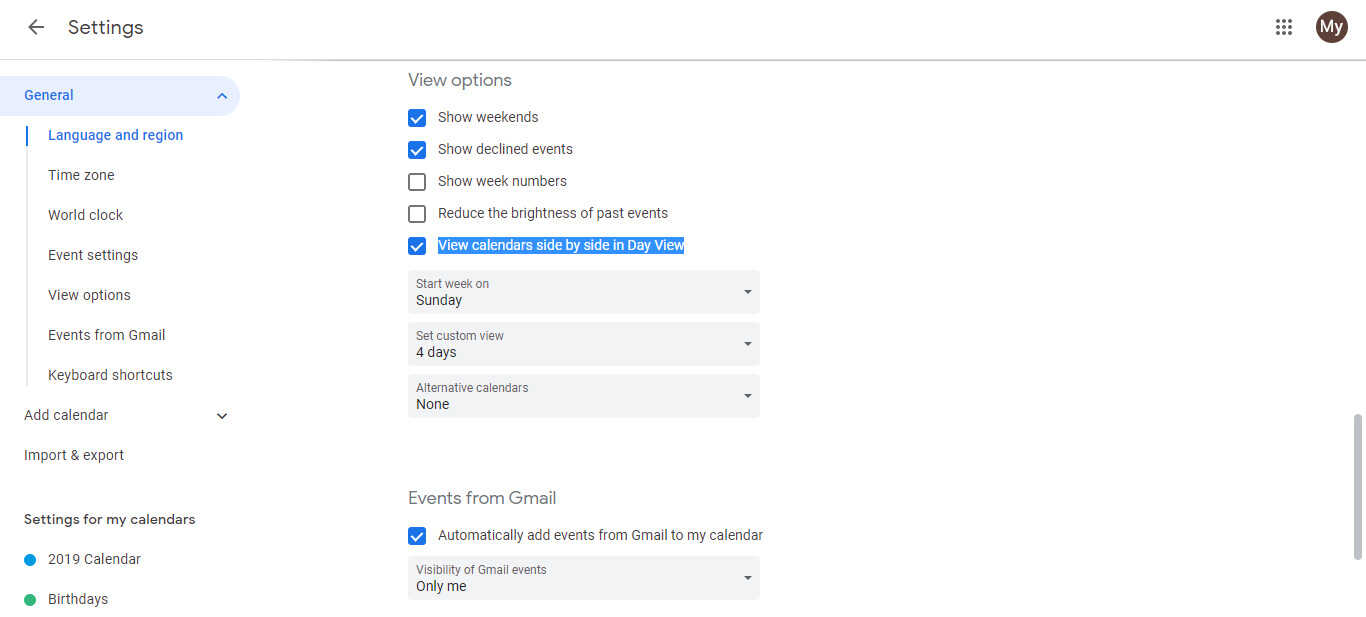
Managing multiple Google Calendars can be challenging, but there are several tips that can help. First, use different colors to distinguish between each calendar, making it easier to see which events belong to which calendar. Second, use the 'Calendar settings' menu to customize the view and layout of your calendars. Finally, consider using a calendar management tool to help you keep track of all your calendars and events. By following these tips, you can stay organized and make the most of your Google Calendar account.