Mastering Printable Page Margins in Word: A Comprehensive Guide
Understanding Page Margins in Word
When working with Microsoft Word, one of the most crucial aspects of document formatting is setting the page margins. Page margins refer to the space between the text and the edge of the page. Properly set margins can enhance the readability and visual appeal of your document. In this article, we will delve into the world of printable page margins in Word, exploring how to set, adjust, and customize them to suit your needs.
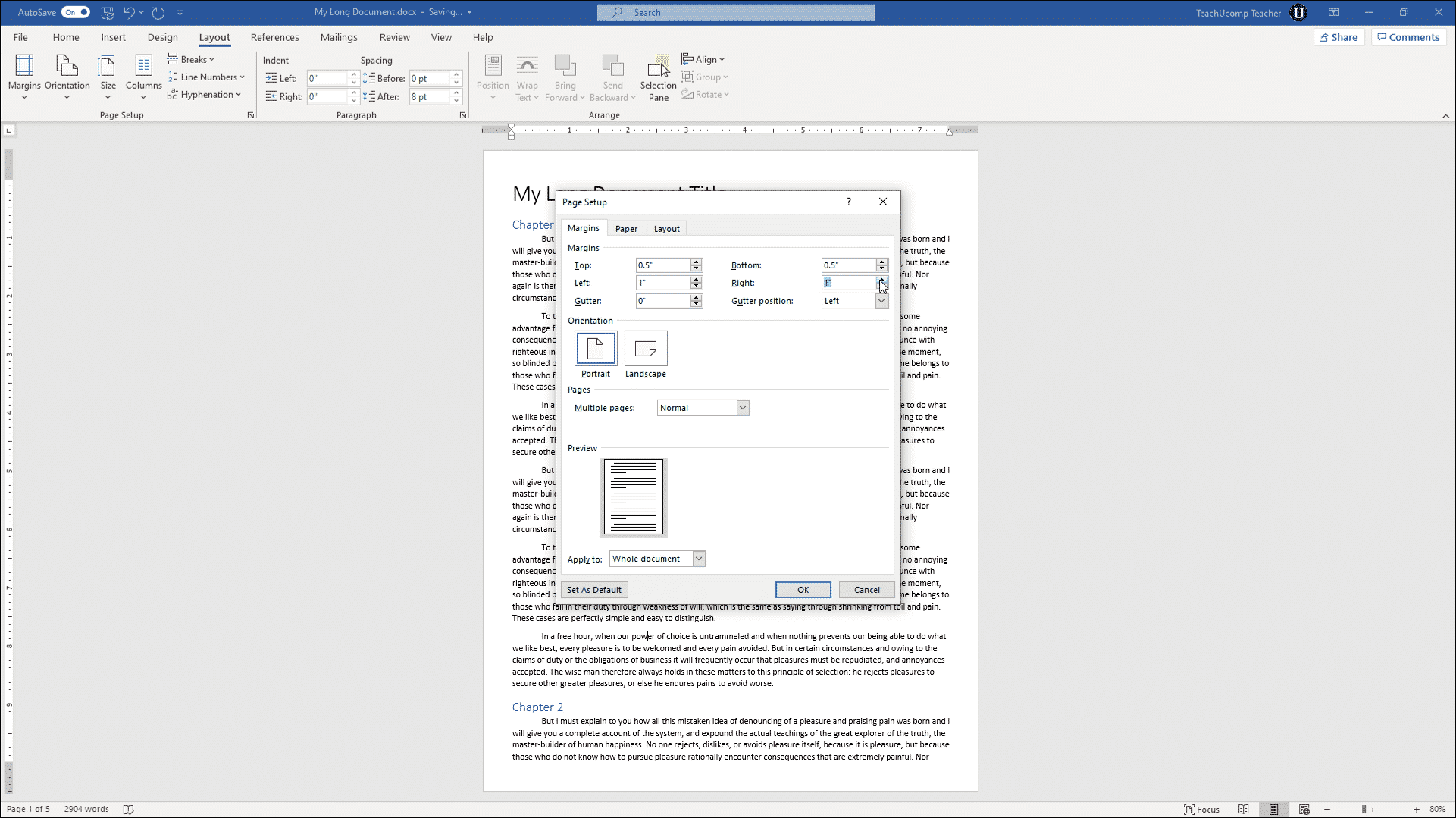
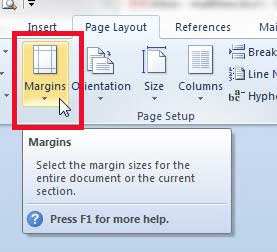
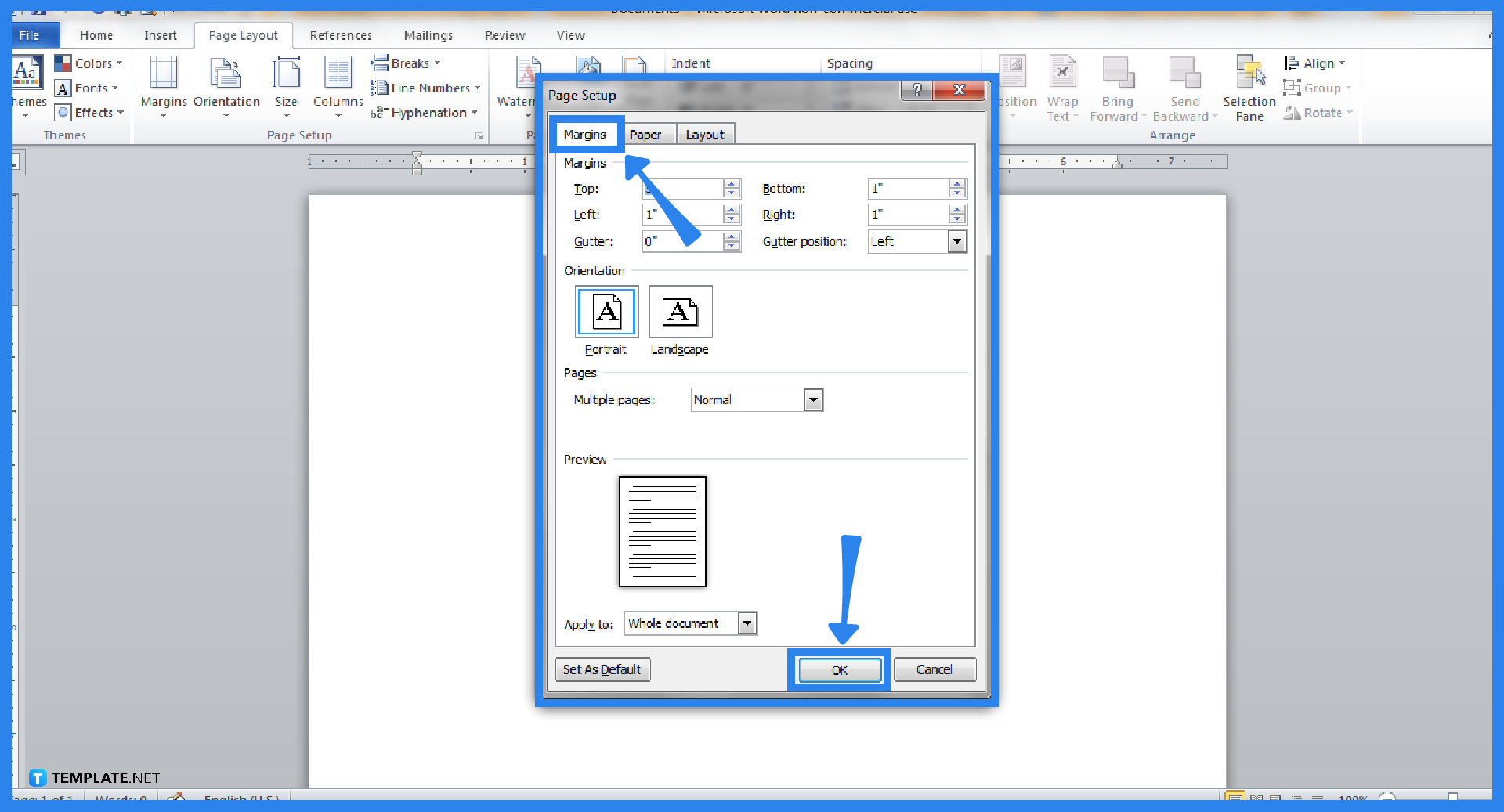
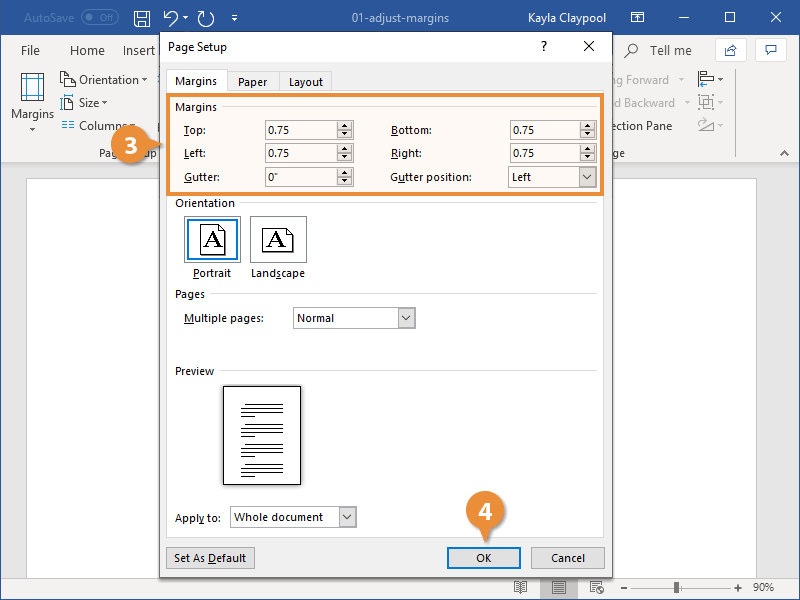
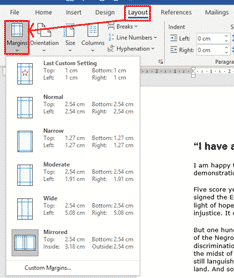
Setting the page margins in Word is a straightforward process. To begin, open your document and go to the 'Layout' or 'Page Layout' tab, depending on your version of Word. Click on the 'Margins' button, and a dropdown menu will appear, offering you a range of pre-set margin options. You can choose from common settings like 'Normal', 'Narrow', 'Moderate', 'Wide', and 'Mirrored'. If none of these options meet your requirements, you can select 'Custom Margins' to input your own values.
Adjusting and Customizing Printable Page Margins
Understanding the concept of page margins is essential for effective document design. The standard margin settings in Word include top, bottom, left, and right margins. Each of these plays a significant role in the overall appearance of your document. For instance, the top margin is the space between the top edge of the page and the beginning of the text, while the bottom margin is the space between the end of the text and the bottom edge of the page. Similarly, the left and right margins define the space between the text and the left and right edges of the page, respectively.
Adjusting and customizing printable page margins in Word offers you the flexibility to tailor your documents to specific needs or preferences. Whether you're working on a report, a thesis, or a simple letter, being able to adjust the margins allows you to control the layout and ensure that your document prints perfectly. For custom margins, you can specify the exact measurements for each margin, giving you complete control over the layout. Additionally, Word allows you to set different margins for the first page, which is particularly useful for documents that require a distinct first page, such as a title page or a cover letter.