Mastering Printable Margins in Word: A Guide to Perfect Printing
Understanding Printable Margins in Word
When it comes to printing documents from Microsoft Word, one of the most crucial aspects to consider is the printable margins. Margins are the blank spaces between the edge of the paper and the text or images on the page. Properly set margins can make a significant difference in the overall appearance and readability of your document. In this article, we'll delve into the world of printable margins in Word and explore how to adjust them to achieve perfect printing results.
The importance of margins cannot be overstated. They help to create a clean and professional look, making your document more visually appealing. Moreover, margins play a critical role in ensuring that your text and images are not cut off during the printing process. By setting the correct margins, you can avoid the frustration of having to reprint your document multiple times. Whether you're printing a report, a letter, or a brochure, mastering printable margins in Word is essential for achieving high-quality prints.
How to Adjust Printable Margins in Word
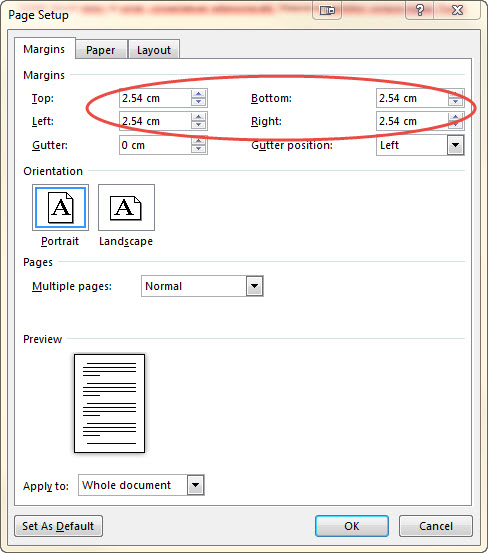
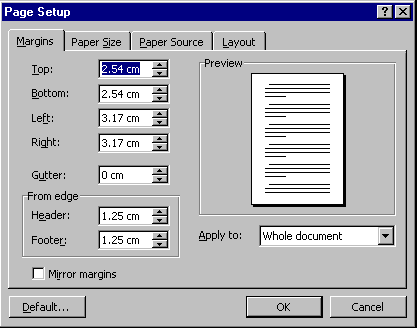
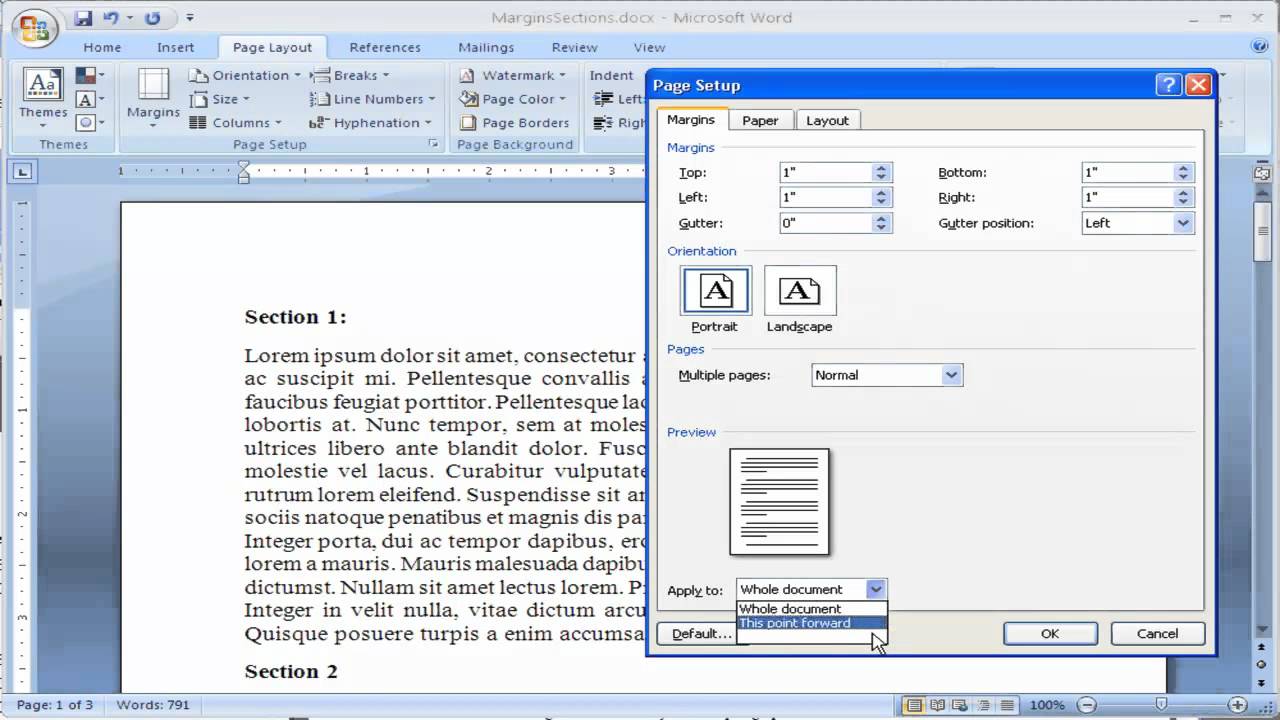
When adjusting printable margins in Word, it's essential to understand the different types of margins and how they affect your document. The top margin is the space between the top edge of the paper and the first line of text. The bottom margin is the space between the last line of text and the bottom edge of the paper. The left and right margins are the spaces between the left and right edges of the paper and the text or images. By adjusting these margins, you can customize the layout of your document to suit your needs.
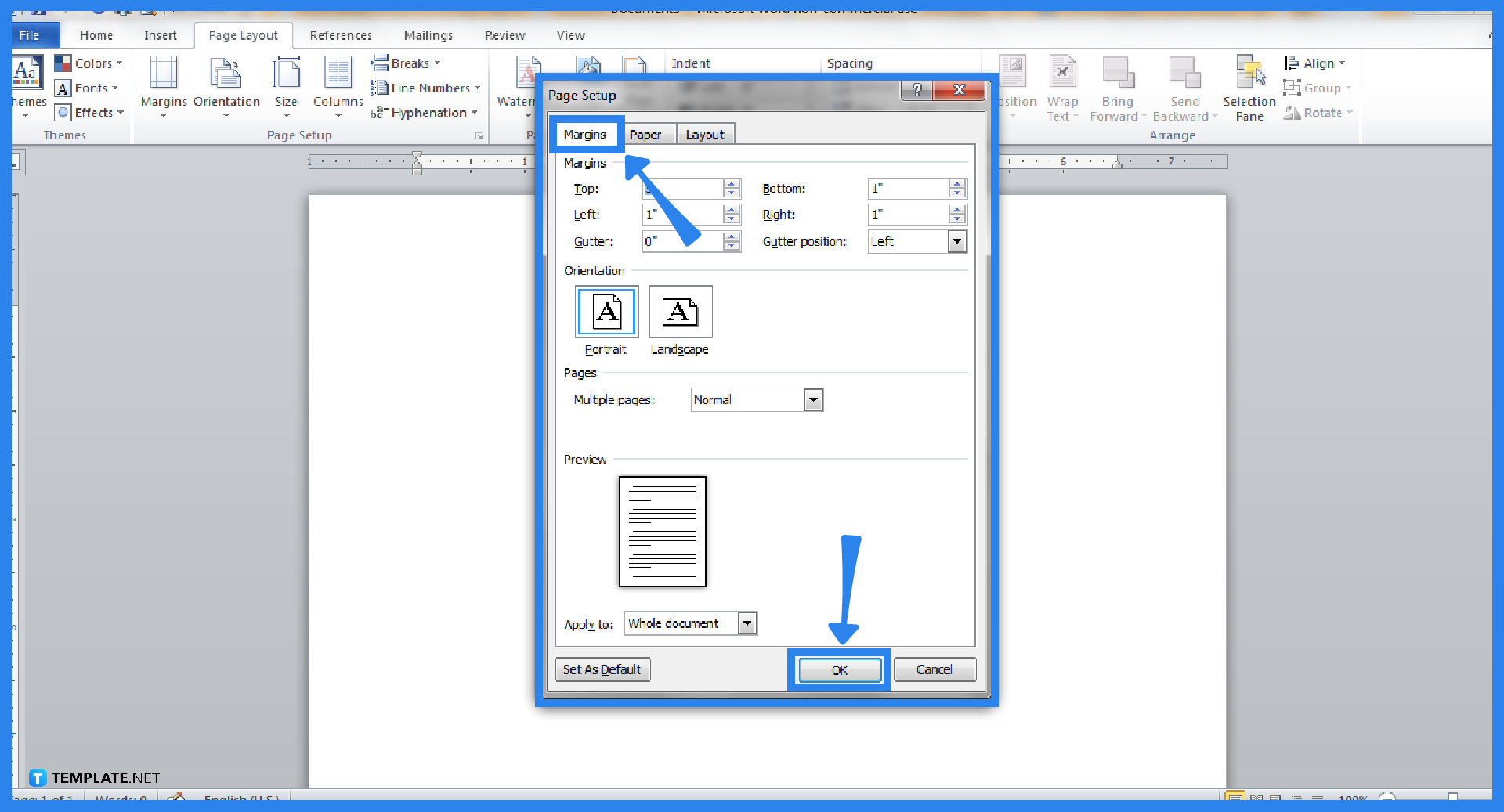
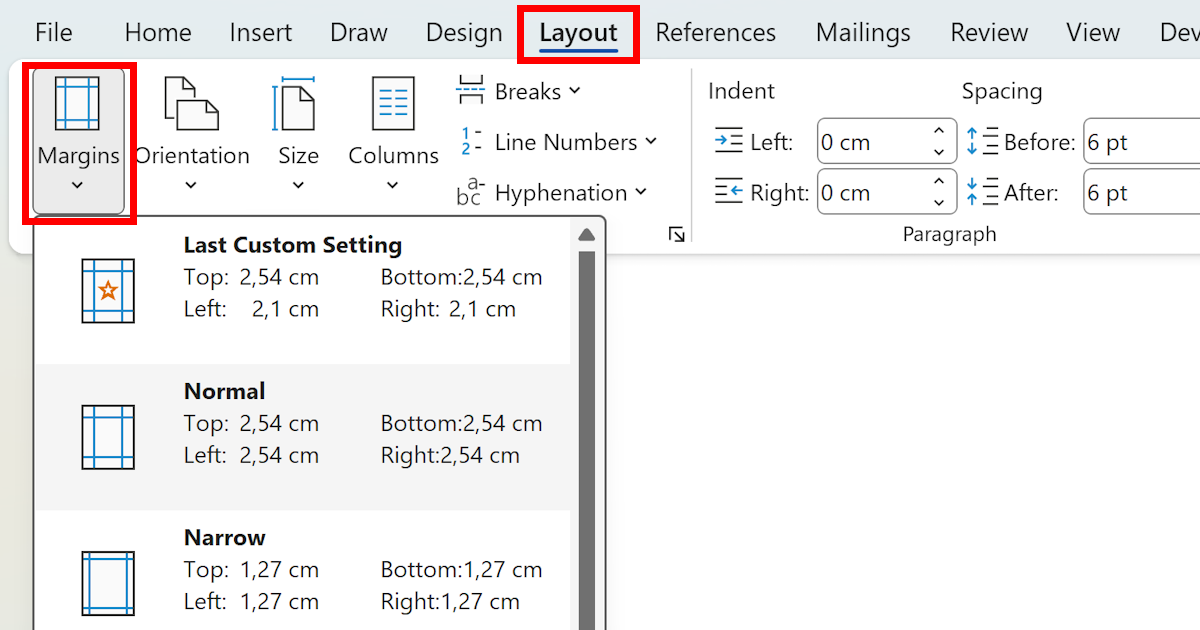
Adjusting printable margins in Word is a straightforward process. To do so, go to the 'Layout' or 'Page Layout' tab, depending on your version of Word. Then, click on the 'Margins' button and select 'Custom Margins.' From there, you can enter your desired margin settings and click 'OK' to apply the changes. You can also use the 'Ruler' tool to adjust the margins by dragging the margin markers. By following these simple steps, you can achieve perfectly printed documents with ease.